Showing posts with label passeord verify. Show all posts
Showing posts with label passeord verify. Show all posts
07:07
Forgot Windows XP Password. Here's how to get in ?
You can still log on to Windows XP if you forget your password or the password has expires because you didn't use it since a long time. There are two approaches to recover your lost Windows XP password.
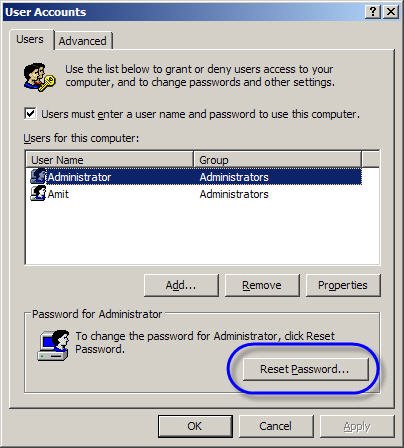
The first password recovery approach suggests that you log on to the computer using another user account that has administrator credentials. Once you're logged in as the admin, open command prompt and type the following command:
control userpasswords2
Click the user account that you forgot the password for, and then click Reset Password. Type a new password in both the New password and the Confirm new password boxes, and then click OK. You should now be able to log on to Windows with the user account and the new password.
 The second approach uses a Password Reset Removable Drive to reset and create a new password.
On the Windows XP Logon screen, choose the user name and press Enter when the Type your Password box appears. Click use your password reset disk. Insert the password reset disk into drive A and choose a new password.
If you have not created a password reset disk, and you have also forgotten the password for all user accounts, you may not be able to log on to your existing Windows installation. It is tough to crack Windows XP passwords. In this extreme case, you must perform a "clean" installation of Windows XP, re-create all user accounts, and then reinstall all your software programs.
07:03
How to Verify That You Have Typed In The Correct Password
When you type your password on a website, all you see are asterisk (*) signs. That is probably a security measure in web browser to prevent people, sitting next to you, from finding your password.

But there are cases when you would really want to know the exact characters that you are typing in the password filed.
For instance when logging into your online bank account, if you type the wrong password more than three times, the account access could be locked for the next few hours. And it’s not uncommon to make typing mistakes especially when you have a long password.
A simple solution to prevent password typo errors is the show my password bookmarklet – just drag the link into your browser bookmarks.
Now the next time when you login into some website, just type the password and click the “show my password” bookmarklet before hitting the Submit button – this will reveal the actual password characters, not the asterisk signs. (see screenshot)
So you can very easily confirm that the password you are just about to submit is the right one.

But there are cases when you would really want to know the exact characters that you are typing in the password filed.
For instance when logging into your online bank account, if you type the wrong password more than three times, the account access could be locked for the next few hours. And it’s not uncommon to make typing mistakes especially when you have a long password.
A simple solution to prevent password typo errors is the show my password bookmarklet – just drag the link into your browser bookmarks.
Now the next time when you login into some website, just type the password and click the “show my password” bookmarklet before hitting the Submit button – this will reveal the actual password characters, not the asterisk signs. (see screenshot)
So you can very easily confirm that the password you are just about to submit is the right one.