Showing posts with label hack password. Show all posts
Showing posts with label hack password. Show all posts
06:20
Do More with your Browser’s Search Box
The search box is located in the upper right corner of IE and Firefox while Chrome has this thing integrated in the address bar itself. The function is however the same – it offers you a convenient way to search using your favorite search engine.
Other than search, there are some more interesting uses of the search bar as well.
1. Avoid Spelling Mistakes
 If you writing an email inside the browser and are unsure about the spelling of some word, you can simply type that misspelled word in the search box.
Google will immediately offer you the correct spelling as a query suggestion that you can copy-paste into your email message.
2. Clean-up Formatting from Copied Text
When copying content from a web page into an email message, you can first paste that text into your browser’s search box and then copy it to the clipboard.
This will automatically convert the rich text into plain text removing all the hyperlinks and other formatting that you don’t want to add to your email message.
3. Correct Grammar Errors
The search box can also help you fix grammatical errors in your sentences.

Say you sometimes get confused between words like ‘affect’ and ‘effect’ or between ‘advise’ and ‘advice.’ In that case, just type the whole sentence in the search box and it should save you from making that silly grammatical error again.
4. Search Box as a Notepad
The search bar can be used like a notepad as it automatically stores all your search queries until you clear them manually.
This is so useful because you can easily save pieces of text in the search bar that you may repeatedly need inside your browser later.
For instance, I have an airway bill number of a package that I can store in the search box by performing a search only once. Later, when I am on the shipping company’s website to track the package status, I can easily retrieve that number by simply typing the first few characters in the search box -- there’s no need for me to hunt for the email that has that tracking number.
5. As your Password Manager

Ever since my Gmail account got hacked, I have switched to a very long and complex password. Now it may be hard for someone to guess that password but it is equally hard for me to type that lengthy string correctly especially when everything in a password field is represented as asterisk characters.
I therefore store this ‘complex password’ in the search box. Whenever I am need my my Google Account credentials, I simply type the first few characters of the password in the search box, the string appears in the drop-down from where I can copy-paste it into the password box. Here’s a demo:
This method saves time but, obviously, it is not recommended for people who work on a shared computer.
Other than search, there are some more interesting uses of the search bar as well.
1. Avoid Spelling Mistakes
If you writing an email inside the browser and are unsure about the spelling of some word, you can simply type that misspelled word in the search box.Google will immediately offer you the correct spelling as a query suggestion that you can copy-paste into your email message.
2. Clean-up Formatting from Copied Text
When copying content from a web page into an email message, you can first paste that text into your browser’s search box and then copy it to the clipboard.
This will automatically convert the rich text into plain text removing all the hyperlinks and other formatting that you don’t want to add to your email message.
3. Correct Grammar Errors
The search box can also help you fix grammatical errors in your sentences.
Say you sometimes get confused between words like ‘affect’ and ‘effect’ or between ‘advise’ and ‘advice.’ In that case, just type the whole sentence in the search box and it should save you from making that silly grammatical error again.
4. Search Box as a Notepad
The search bar can be used like a notepad as it automatically stores all your search queries until you clear them manually.
This is so useful because you can easily save pieces of text in the search bar that you may repeatedly need inside your browser later.
For instance, I have an airway bill number of a package that I can store in the search box by performing a search only once. Later, when I am on the shipping company’s website to track the package status, I can easily retrieve that number by simply typing the first few characters in the search box -- there’s no need for me to hunt for the email that has that tracking number.
5. As your Password Manager
Ever since my Gmail account got hacked, I have switched to a very long and complex password. Now it may be hard for someone to guess that password but it is equally hard for me to type that lengthy string correctly especially when everything in a password field is represented as asterisk characters.
I therefore store this ‘complex password’ in the search box. Whenever I am need my my Google Account credentials, I simply type the first few characters of the password in the search box, the string appears in the drop-down from where I can copy-paste it into the password box. Here’s a demo:
This method saves time but, obviously, it is not recommended for people who work on a shared computer.
07:07
Forgot Windows XP Password. Here's how to get in ?
You can still log on to Windows XP if you forget your password or the password has expires because you didn't use it since a long time. There are two approaches to recover your lost Windows XP password.
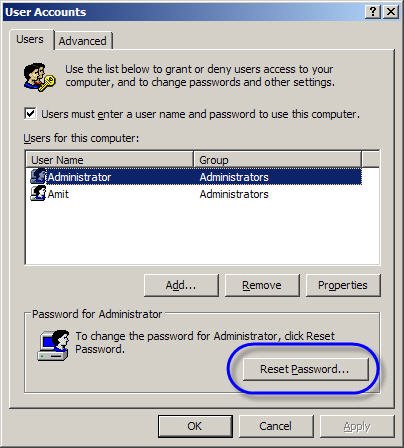
The first password recovery approach suggests that you log on to the computer using another user account that has administrator credentials. Once you're logged in as the admin, open command prompt and type the following command:
control userpasswords2
Click the user account that you forgot the password for, and then click Reset Password. Type a new password in both the New password and the Confirm new password boxes, and then click OK. You should now be able to log on to Windows with the user account and the new password.
 The second approach uses a Password Reset Removable Drive to reset and create a new password.
On the Windows XP Logon screen, choose the user name and press Enter when the Type your Password box appears. Click use your password reset disk. Insert the password reset disk into drive A and choose a new password.
If you have not created a password reset disk, and you have also forgotten the password for all user accounts, you may not be able to log on to your existing Windows installation. It is tough to crack Windows XP passwords. In this extreme case, you must perform a "clean" installation of Windows XP, re-create all user accounts, and then reinstall all your software programs.
07:03
How to Verify That You Have Typed In The Correct Password
When you type your password on a website, all you see are asterisk (*) signs. That is probably a security measure in web browser to prevent people, sitting next to you, from finding your password.

But there are cases when you would really want to know the exact characters that you are typing in the password filed.
For instance when logging into your online bank account, if you type the wrong password more than three times, the account access could be locked for the next few hours. And it’s not uncommon to make typing mistakes especially when you have a long password.
A simple solution to prevent password typo errors is the show my password bookmarklet – just drag the link into your browser bookmarks.
Now the next time when you login into some website, just type the password and click the “show my password” bookmarklet before hitting the Submit button – this will reveal the actual password characters, not the asterisk signs. (see screenshot)
So you can very easily confirm that the password you are just about to submit is the right one.

But there are cases when you would really want to know the exact characters that you are typing in the password filed.
For instance when logging into your online bank account, if you type the wrong password more than three times, the account access could be locked for the next few hours. And it’s not uncommon to make typing mistakes especially when you have a long password.
A simple solution to prevent password typo errors is the show my password bookmarklet – just drag the link into your browser bookmarks.
Now the next time when you login into some website, just type the password and click the “show my password” bookmarklet before hitting the Submit button – this will reveal the actual password characters, not the asterisk signs. (see screenshot)
So you can very easily confirm that the password you are just about to submit is the right one.